Template Layout for Cantor MX
This template is my opinionated variation of layout based on (and affected by) my experience of using my Dactyl Manuform keyboard and the NeoVim editor.
I’ve tried to keep it similar to standard keyboard layout (to keep the muscle memory) and improve it if possible.
I will try to explain all the choices later but the core idea of this template — strict separation of the hands.
Layers
Base Layer
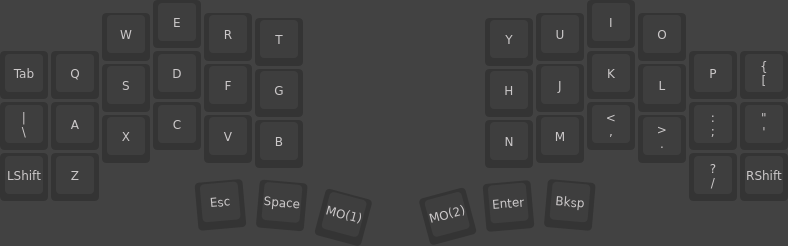
It’s typical QWERTY layout with \,| key moved to the left half.
Thumb keys used for most popular keys and repeat their order on the typical keyboard: Esc, Space, Enter and Backspace. Inner modifiers used for additional layers: left and right correspondingly.
Additional Layers
The core idea of the additional layers: you should use both hands for typing numbers or brackets, and could use just one hand for navigation and modifiers.
Left MO(1)
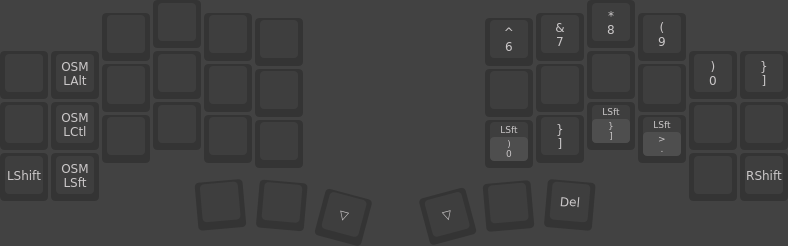
Right MO(2)
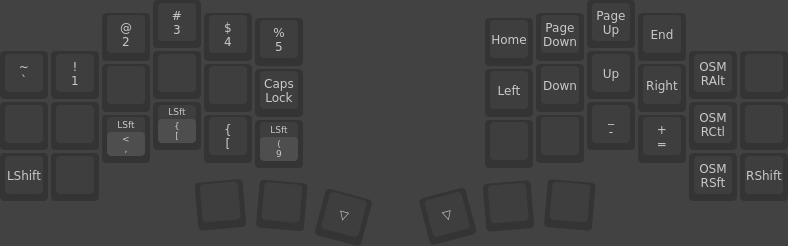
Modifiers strategy
All the main modifiers (Ctrl, Alt and Shift) are available with both hands as One Shot Modifiers.
Classic shifts also presented on all layers (my experience shows that it’s useful sometimes).
For example, you could try this classical shortcuts:
Ctrl + C: right thumb + right pinky, left middle finger;Ctrl + F: right thumb + right pinky, left index finger;Ctrl + U: left thumb + left pinky, right index finger;Ctrl + Shift + P: left thumb + left pinky * 2, right pinky;
One Shot Modifiers could be released before the next key.
They also work as classical keys when held.
You could release layer modifier when hold the sticky modifier: it’s useful in case of Ctrl + W + W + W for example.
Numbers
All the number and symbols available with opposite hand modifier:
1: right thumb + left pinky;6: left thumb + right index finger;#: right thumb + right pinky (forShift) + left middle finger;
Brackets
Opens brackets on the left half, closes brackets - on the right:
Use thumb + opositive index finger for round brackets (), middle finger for square ones [], etc.
Arrows
Arrows follow the vim hjkl (left, down, up, right) strategy. Use them with right hand. Ontop you can find correspondent Home, PgDown, PgUp, End keys.
Quirks
There are several “illogicaly placed” keys:
- Tilde and
],}keys placed on their places for russian Cyrilic layout support, feel free to move or remove them; -,_and=,+keys follow my Dactyl Manuform keyboard layout and could be placed in any other place. It’s handy if you want to type=>in JS -_^- I use
Caps Lockfor switching layouts in OS. That’s why you could see it in the middle of left half of the “right” layer =) Delkey share their place withBackspace. Trust me, it’s handy =)
Everything Else
You could see a lot of empty keys on the both additional layers, so you could use them according to your workflow:
F-keys: if you need you could put them under the numbers.Mouse layer: I do not decided yet where I will put it =)Superkey is missing, put it in any place you like. I’m heavily using it for window management, it isn’t a common scenario so I decide do not include it at all.- Media keys, combos and everything else is also up to you.
Feel free to ask me anything or share your layouts =)